 GatherAll
💻 On a computer (recommended)
- Open a browser and go to calendar.google.com
- Click the gear icon (⚙️) in the top right → Settings
- In the left sidebar under "Settings for my calendars", click the name of the calendar you want to add
- Scroll down to "Integrate calendar"
- Find "Secret address in iCal format" and click the copy icon on the right
- Paste the link into GatherAll when adding a calendar
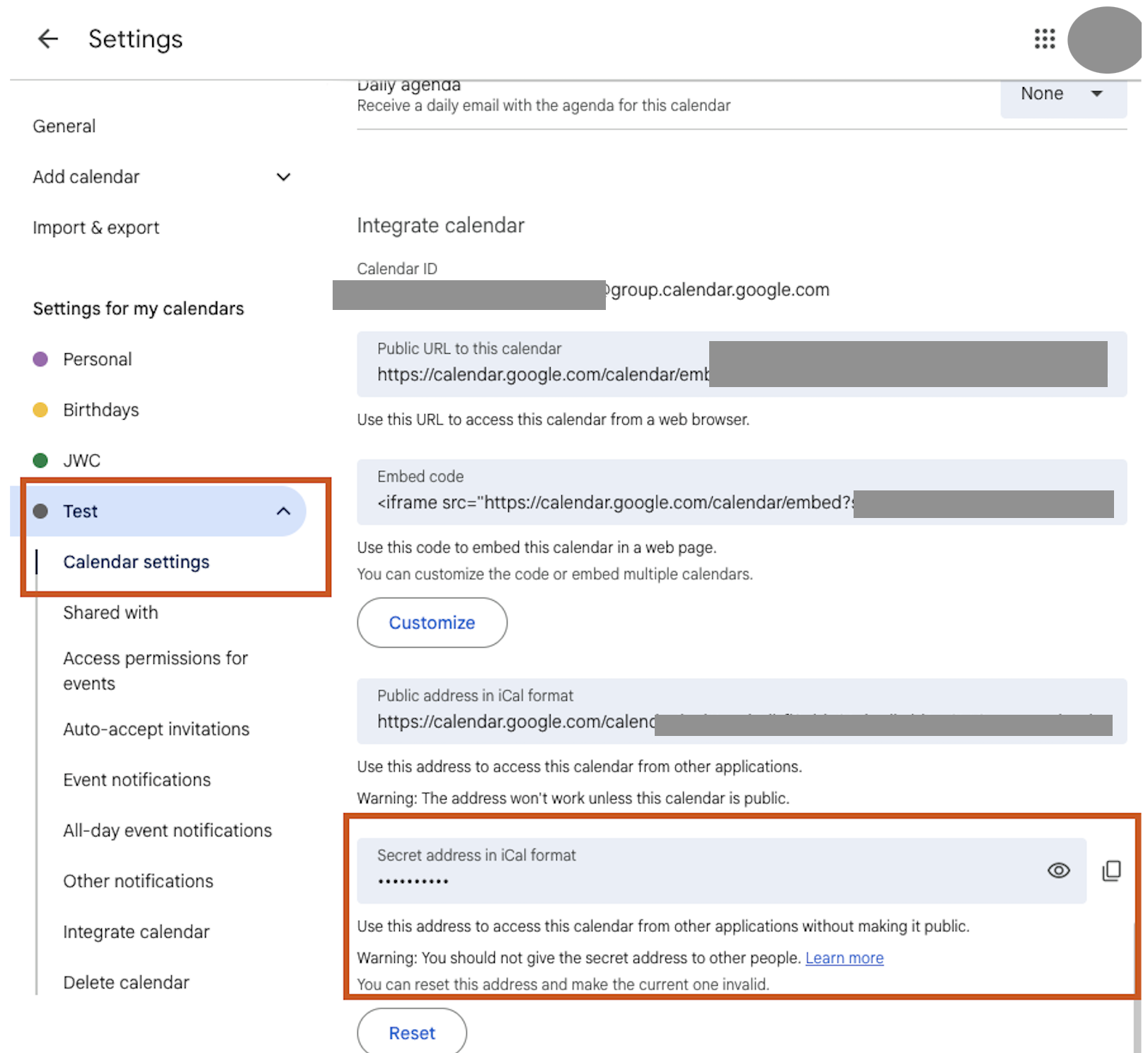
Copy the "Secret address in iCal format" — not the public address above it
⚠️ Keep this link private — anyone with it can view your calendar events.
📱 On an iPhone
Google's mobile app doesn't show the ICS link directly. The easiest path is to get the link on a computer first, then send it to your phone.
If you only have your phone:
- Open Safari on your iPhone
- Go to calendar.google.com
- Tap the AA menu in the address bar → Request Desktop Website
- Follow the same steps as above to find and copy the link
- Paste it directly into GatherAll
✉️ Sending the link from your computer to your phone
- After copying the link on your computer, open your email
- Send yourself a new email with the link pasted in the body
- Open the email on your iPhone
- Tap and hold the link → tap Copy
- Open GatherAll → Add Calendar → paste the link
💻 On a Mac
- Open the Calendar app
- In the left sidebar, hover over the calendar you want to share
- Click the ••• that appears next to it → Share Calendar
- Turn on Public Calendar
- Copy the link that appears
- The link starts with
webcal://— you need to change it tohttps://before pasting into GatherAll
How to update the link:
webcalhttps://p31-caldav.icloud.com/published/2/your-link...
Just replace webcal with https at the very beginning.
📱 On an iPhone
- Open the Calendar app
- Tap Calendars at the bottom of the screen
- Tap the ⓘ (info icon) next to the calendar you want to share
- Tap Share Calendar
- Turn on Public Calendar
- Tap Share Link → Copy
- Open the Notes app and paste the link
- Change webcal:// at the start to https://
- Copy the updated link and paste it into GatherAll
✉️ Sending the link from your computer to your phone
- After copying and updating the link on your Mac, open your email
- Send yourself a new email with the link pasted in the body
- Open the email on your iPhone
- Tap and hold the link → tap Copy
- Open GatherAll → Add Calendar → paste the link
📱 Can I add my partner's Apple Calendar?
Because Apple Calendar stays tied to the device it's on, each person needs to connect their own calendars from their own iPhone. Here's how it works:
- The primary account holder adds the partner as a family member in Settings → Family Members.
- The partner opens GatherAll on their own iPhone and signs in.
- The partner goes to the Calendars tab, taps +, and chooses Connect Apple Calendar.
- Their events will then flow into the shared family inbox for review.
This keeps everyone's Apple ID secure — no sharing of passwords needed.
Still stuck?
We're happy to help. Email us at hello@getgatherall.com and we'll walk you through it.